How to Set Up Telehealth for an Elderly Parent

To get a telehealth account working for your elderly parent, you need to do four things: create and verify a patient portal account, request caregiver proxy access or a signed HIPAA authorization, install the telehealth app (or bookmark the browser link), and complete a test call before appointment day. Do this while your parent is healthy. A crisis-driven setup at 9 PM the night before a visit is where things fall apart.
Here is your immediate checklist:
- Create the patient portal account using your parent’s date of birth, medical record number, and a working email address
- Request caregiver proxy access at registration — ask specifically; it is not always offered automatically
- Install the telehealth app or confirm the browser link works on the device your parent will use
- Grant camera and microphone permissions when prompted — clicking “Block” by accident is one of the most common failures
- Run a test call at least 24 hours before the first appointment
- Store login credentials and signed proxy forms somewhere secure and easy to find
Note: Proxy or HIPAA authorization paperwork is not optional for ongoing access. Without it, the clinic cannot legally share your parent’s health information with you on a routine basis. Request it at registration, not after the first visit.
Key Takeaways
Setting up telehealth for an elderly parent requires four concrete steps done in advance: verified portal account, caregiver proxy authorization, tested app or browser link, and a rehearsal call before appointment day.
| Point | Details |
|---|---|
| Create and verify the portal account | Use your parent’s date of birth and medical record number; set up a dedicated medical email if needed. |
| Request proxy access early | Ask at registration for a HIPAA authorization form or Durable Power of Attorney to gain ongoing legal access. |
| Test audio and video in advance | Run a practice call 24–48 hours before the appointment; audio failure is the most common problem. |
| Set up the device properly | Use a tablet on a stand, grant camera and microphone permissions, and keep the device plugged in during visits. |
| Myanchorhealthpc for Maryland families | Myanchorhealthpc offers telehealth primary care with relationship-based visits, insurance acceptance, and caregiver support at setup. |
Table of Contents
- What telehealth is and when it’s the right choice for an older adult
- What equipment and connectivity do you need to prepare?
- How to set up a telehealth account for an elderly parent, step by step
- HIPAA, caregiver proxy access, and how to get legal permission
- Fast fixes for login problems, audio failures, and connection dropouts
- How caregivers should support the visit without replacing the patient
- What caregivers actually learn after the first telehealth setup
- Anchor Health makes telehealth primary care easier for Maryland caregivers
- Sources
What telehealth is and when it’s the right choice for an older adult
Telehealth is medical care delivered through a secure video call, a browser link, a dedicated app, or, in some cases, audio only. Your parent’s doctor appears on screen; your parent speaks, shows symptoms, and receives guidance without leaving home. KFF research shows that about 73% of adults aged 50 and older used telehealth at least once in the past year, with high satisfaction rates, though many still prefer in-person care for complex decisions.
Telehealth works well for a specific range of visits. Prescription refills, chronic disease check-ins, mental health follow-ups, lab result reviews, and simple questions about a new symptom are all appropriate. The HHS telehealth guide for older adults recommends a hybrid approach: use video visits for routine, low-complexity care and reserve in-person appointments for new or serious symptoms, anything requiring a physical exam, or situations where your parent is visibly distressed and needs hands-on assessment.
Older adults often need a few accessibility adjustments to use telehealth comfortably. Captions can be turned on in most platforms and help significantly for patients with mild hearing loss. Larger text settings on the device reduce squinting and confusion. For patients who use hearing aids, Bluetooth streaming directly from the device to the hearing aid removes the need to hold a phone to the ear. These are not workarounds — they are standard features, and telehealth accessibility resources for caregivers can walk you through enabling each one before the first visit.
What equipment and connectivity do you need to prepare?
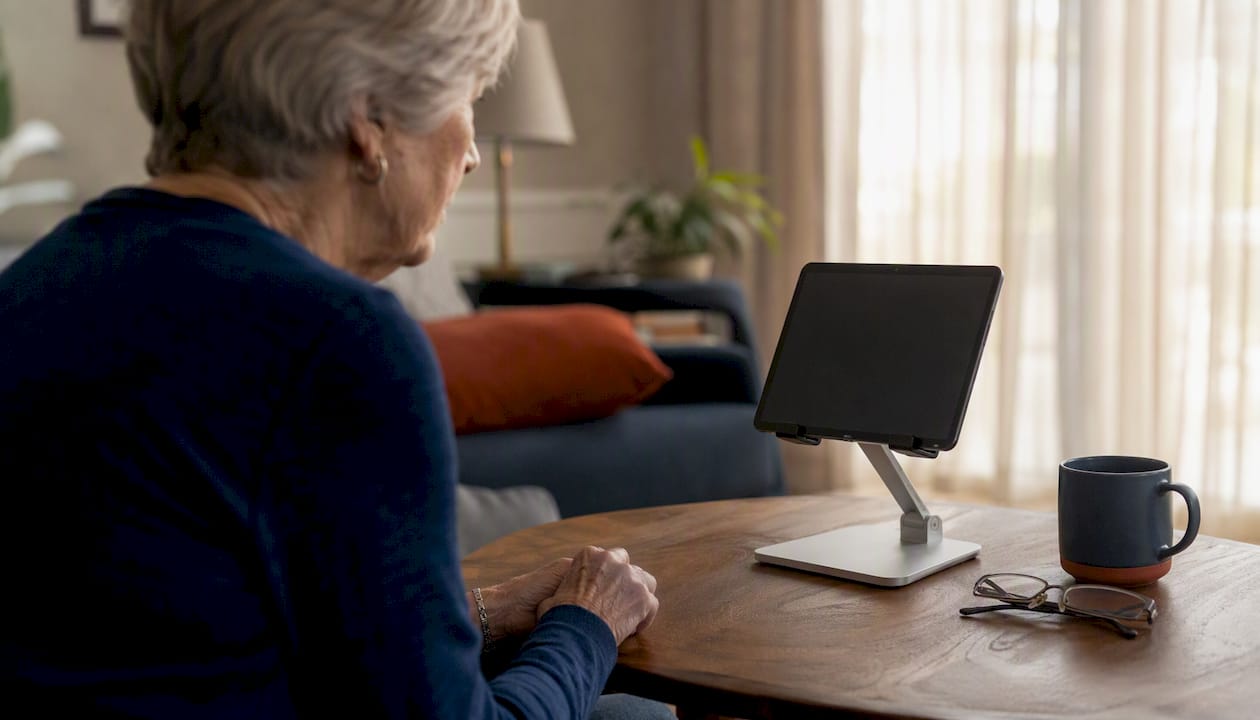
A tablet is the best starting device for most older adults. The screen is large enough to see the clinician clearly, the camera is front-facing, and the device is easier to prop on a stand than a phone. Laptops work well too, particularly for patients who are already comfortable with a keyboard. Phones are the least ideal option: the screen is small, the camera angle is awkward when held by hand, and framing the face correctly is harder for someone with limited dexterity.
| Device | Screen size | Ease of use | Camera framing | Best for |
|---|---|---|---|---|
| Tablet (iPad or Android) | Large | High | Easy with stand | Most older adults |
| Laptop | Large | Medium | Good with built-in cam | Tech-comfortable patients |
| Smartphone | Small | Low | Difficult handheld | Fallback only |
Internet and connectivity: Most telehealth platforms need a stable connection of at least 10 Mbps download to maintain clear video. If your parent’s Wi-Fi is weak in the room where they sit, move the router closer, use a Wi-Fi extender, or connect the laptop directly to the router with an Ethernet cable. A phone hotspot is a reliable backup when home internet is unreliable.
Statistic: KFF data shows that telehealth adoption among adults 50 and older has grown substantially, yet connectivity and device comfort remain the two most cited barriers to consistent use.
Accounts to set up in advance:
- A patient portal account (MyChart or the clinic’s equivalent)
- The telehealth platform app, if the clinic uses one
- A dedicated medical email address if your parent does not have one
- A phone number for two-factor authentication
- A caregiver proxy request, submitted at registration
Comfort and accessibility add-ons worth buying: A simple tablet stand ($15–$25) keeps the camera at eye level and frees both hands. An external Bluetooth speaker or headphones improve audio clarity. Enabling larger font sizes in the device’s accessibility settings takes two minutes and makes a real difference for patients with low vision.
How to set up a telehealth account for an elderly parent, step by step
Follow these steps in order. Skipping the proxy request or the test call is where most caregivers run into trouble on appointment day.
-
Gather your parent’s identifying information. You will need their full legal name, date of birth, medical record number (found on any insurance card or previous visit summary), and their insurance information.
-
Create the patient portal account. Go to the clinic’s website and find the patient portal link. Enter your parent’s information exactly as it appears on their insurance card. Most portals (including MyChart) send a verification email or text to confirm identity.
-
Handle the email problem first. If your parent does not have an email address, create a dedicated one now — something simple like “firstname.lastname.health@gmail.com.” Write the address and password on a card taped inside a kitchen cabinet. Set email forwarding to your own address so you receive appointment reminders automatically. Elder Safety Hub’s virtual appointment guide notes that portals typically require a date of birth and medical record number for verification, so have both ready.
-
Request caregiver proxy access at registration. Call the clinic’s registration line and ask specifically for proxy access. Some portals have a built-in proxy option; others require a paper or PDF form. Do not assume the option is visible — ask the registration team directly. For detailed steps on what portal proxy access means and how to manage it, this caregiver portal guide covers the process clearly.
-
Install the telehealth app or bookmark the browser link. Ask the clinic whether visits open in a browser or require a dedicated app. If it is browser-based, bookmark the link on the home screen. If an app is required, download it, log in, and confirm it opens correctly. Elder Safety Hub’s telehealth call guide notes that browser-based visits will prompt for camera and microphone permissions — clicking “Allow” is the step most patients accidentally skip.
-
Set device permissions and accessibility settings. Go to the device’s settings and confirm the telehealth app (or browser) has camera and microphone access. Turn on captions if available. Increase text size. Enable “Do Not Disturb” during the appointment window so calls do not interrupt. Keep the device plugged in during visits.
-
Run a test call 24–48 hours before the appointment. Call a family member using the same app or browser. Confirm the camera shows your parent’s face clearly, the microphone picks up their voice, and the speaker is loud enough. Consumer telehealth guides consistently identify the practice call as the single most effective step to prevent appointment-day failures.
Pro Tip: Use a password manager like 1Password or Bitwarden to store the portal login, or write credentials in a small notebook kept with your parent’s medical documents. Never share your parent’s portal password with multiple people long term. Proxy access gives you your own login, which is the right solution for ongoing management.
HIPAA, caregiver proxy access, and how to get legal permission
HIPAA’s personal representative rule allows a provider to share a patient’s health information with someone who has legal authority to make healthcare decisions on that patient’s behalf. In practice, this means two documents matter: a Durable Power of Attorney for healthcare (which grants broad legal authority) and a HIPAA authorization form (which grants permission to share specific health information with a named person). As HHS guidance on disclosures to friends and family makes clear, without one of these, providers cannot routinely share protected health information with a caregiver, regardless of the relationship.
How to request proxy access from a clinic:
- Call the clinic’s registration or patient services line
- Say: “I am the adult child and caregiver for [parent’s name]. I would like to request caregiver proxy access to their patient portal and HIPAA authorization to receive health information on their behalf.”
- Ask what documents they need: most clinics accept a scanned Durable Power of Attorney or their own HIPAA authorization form
- Upload or mail the signed documents and confirm receipt within a few days
What about informal permission? A patient can verbally authorize a caregiver to participate in a visit at the start of the appointment. The clinician will typically ask your parent directly. This works for a single visit, but it does not give you ongoing portal access, the ability to schedule appointments independently, or the right to receive records. Written proxy authorization is the only durable solution.
Pro Tip: Scan every signed legal document (Durable Power of Attorney, HIPAA authorization) and save copies in a shared, password-protected folder — Google Drive or iCloud work well. Keep a printed copy with your parent’s medication list and insurance card. When you call a new clinic, you can email the scan immediately rather than hunting for the original.
Fast fixes for login problems, audio failures, and connection dropouts
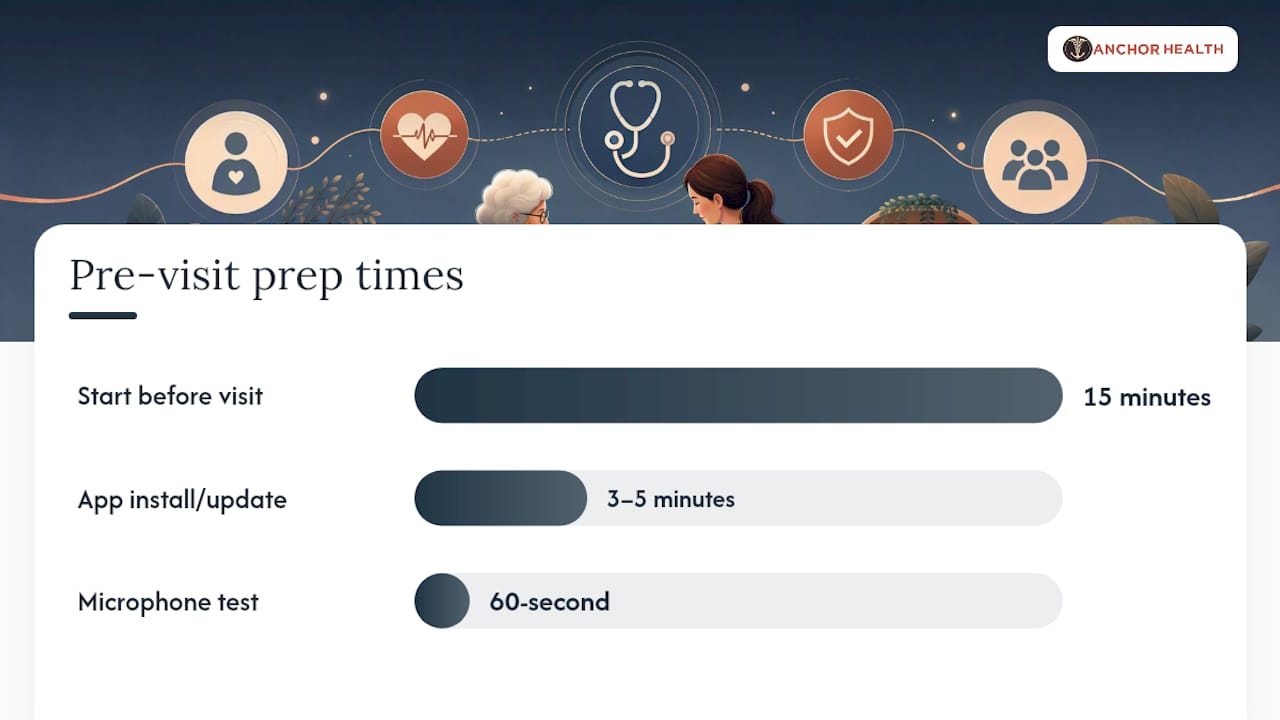
Most telehealth visit failures come down to a short list of fixable problems. Work through them in order, starting 15 minutes before the appointment.
- Link not found or expired: Check the appointment confirmation email for the correct link. Many platforms generate a new link for each visit — do not reuse an old one.
- App not installed or not updated: Open the app store, search for the platform name, and install or update. This takes 3–5 minutes, so do it the night before.
- Camera or microphone blocked: Go to device Settings > Apps (or Privacy) > find the browser or app > confirm camera and microphone are set to “Allow.” Restart the app after changing permissions.
- Poor audio or echo: Move to a quieter room, use headphones, or enable Bluetooth hearing-aid streaming. The American Telemedicine Association identifies audio as the most common failure point in telehealth visits — prioritize the microphone check above everything else.
- Frozen or pixelated video: Move closer to the Wi-Fi router, close other apps and browser tabs, or switch to a phone hotspot. If video cannot be restored, ask the clinic to switch to audio-only.
- Forgotten password: Use the portal’s “Forgot Password” link. This is why a dedicated medical email with forwarding to your address matters — you receive the reset link immediately.
Fallback options when technology fails: Ask the clinic whether they can call your parent’s phone directly for an audio-only visit. Most practices have a staff tech support line for appointment-day issues — find that number before the visit and write it on the device stand.
Pre-visit test routine (run this the day before):
- Check camera: open the front camera and confirm the face is centered and well-lit
- Check microphone: record a short voice memo and play it back
- Check speaker: play a short video and confirm audio is clear
- Check battery: plug in the device
- Check lighting: sit in the same spot as the appointment and confirm the face is not backlit by a window
Pro Tip: Audio is the most common failure point, not video. Before every visit, do a 60-second microphone test using the device’s voice recorder app. If your parent uses Bluetooth hearing aids, pair them to the device the night before and confirm streaming works.
How caregivers should support the visit without replacing the patient
The caregiver’s role during a telehealth visit is to facilitate, not to speak for the patient. AMA guidance on caregiver conduct recommends sitting slightly off-camera unless you are actively needed for technical help or clarification. The clinician needs to assess your parent directly, and that relationship is harder to maintain when a caregiver dominates the screen or the conversation. For a fuller picture of how to handle introductions, note-taking, and follow-ups, this guide on attending a telehealth visit as a caregiver covers the practical details.
How to introduce yourself: At the start of the visit, say your name, your relationship to the patient, and why you are present: “Hi, I’m [name], [parent’s name]’s daughter. I’m here to help with the technology and to take notes.” Then step back.
When to speak up: Intervene if your parent cannot hear the clinician, if a medical term needs clarification, or if your parent forgets a key symptom or medication. Ask the clinician to slow down or repeat by saying, “Could you say that again more slowly? I want to make sure I write it down correctly.”
What to have visible during the visit:
- Medication bottles or a current medication list
- Recent blood pressure, glucose, or other readings
- A written list of the top two or three questions your parent wants answered
Accessibility during the visit: If your parent uses captions, confirm they are on before the visit starts. If the clinician speaks quickly, it is appropriate to ask for a slower pace. Request that complex instructions be followed up with a written portal message so you have a reference after the call.
Pro Tip: Write the top two questions on a sticky note and place it just below the camera. Your parent can glance at it naturally without looking away from the screen, which keeps the conversation flowing and prevents the common “I forgot to ask” moment after the visit ends.
What caregivers actually learn after the first telehealth setup
The first setup almost always takes longer than expected, and the failure is almost never the technology itself. It is the missing email address, the proxy form that was never requested, or the camera permission that was clicked “Block” during setup and forgotten. One caregiver working through a first-visit setup for a parent in her 70s described the moment the test call finally worked as a genuine relief — not because the technology was impressive, but because she knew exactly what her mother would see and hear on appointment day.
A few habits convert a one-time setup into a durable system:
- Label the device. Put a small printed card on the tablet that says “Doctor visits — tap this app.” Remove every other app from the home screen.
- Tape a printed checklist to the wall near the device. Four steps: plug in, tap the app, tap “Allow,” say your name. That is enough for most patients to start a visit independently.
- Enable auto-forwarding on appointment confirmation emails so you receive every scheduling notification without checking your parent’s inbox manually.
- Set a calendar reminder for yourself 48 hours before each appointment to run the pre-visit checklist.
The National Institute on Aging recommends assembling a care hub — medication lists, legal proxy documents, portal logins, and device instructions — while your parent is well. That advice is worth taking seriously. Setting up telehealth access during a health crisis, when your parent is anxious and you are rushed, is significantly harder than doing it on a calm afternoon. Managing family health appointments remotely becomes much easier once that foundation is in place.
Anchor Health makes telehealth primary care easier for Maryland caregivers
If you are looking for a telehealth-first primary care practice that already understands how caregivers work, Myanchorhealthpc is built for exactly this situation. Rather than navigating a large health system where your parent sees a different provider every visit, Myanchorhealthpc delivers relationship-based primary care through secure video visits — the same clinician, consistent follow-up, and a care model designed around continuity.
When you contact Myanchorhealthpc, mention upfront that you are a caregiver setting up access for a parent. The practice can walk you through proxy access, help you confirm your parent’s insurance is accepted, and explain what to expect at the first visit. Myanchorhealthpc accepts insurance, self-pay, HSA/FSA funds, and offers an optional membership for enhanced access and longer visits. For families weighing their options, choosing telehealth primary care is a good place to start. Myanchorhealthpc currently serves patients in Maryland. Book your parent’s first visit at Myanchorhealthpc.
Sources
These are the primary sources behind the steps in this guide. When clinic-specific questions come up, contact the registration team directly. For policy and coverage questions, the federal sources below are the most reliable starting point.
- Telehealth
- KFF – health policy research and data
- AMA – caregiver role guidance
- American Telemedicine Association – telehealth best practices
When to call the clinic vs. when to use federal guidance: Contact the clinic’s registration team for proxy forms, appointment links, app-specific instructions, and insurance questions. Use the federal sources above for HIPAA rights, Medicare coverage rules, and general telehealth best practices that apply regardless of which practice your parent uses.
This article is general information, not a substitute for advice from a qualified doctor. Consult a qualified healthcare professional about your own circumstances before acting on anything here.
Recommended
- How to Attend a Telehealth Visit as a Caregiver
- How to Establish Pediatric Care Telehealth for Your Family
- How Telehealth Handles Sick Child Visits for Families
- How to Book a Telehealth Appointment as a Young Adult
Blog & Information Disclaimer
Last Updated: May 23, 2026
The information provided on the Anchor Health website (https://myanchorhealthpc.com/), including but not limited to blog posts, articles, newsletters, graphics, and other materials (collectively, the "Content"), is for general informational and educational purposes only.
By accessing and using this website, you acknowledge and agree to the following terms and conditions:
The Content on this website is not intended to be a substitute for professional medical advice, diagnosis, or treatment. Always seek the advice of your physician, nurse practitioner, or other qualified health provider with any questions you may have regarding a medical condition. Never disregard professional medical advice or delay in seeking it because of something you have read on this website.
Reading, interacting with, or sharing the Content on this website does not establish a patient-provider relationship between you and Anchor Health or any of its clinicians, including Paule Valery Joseph, PhD, MBA, CRNP, FAAN. A formal patient-provider relationship is only established after you have completed the formal intake process, signed our clinical consent forms, and participated in a secure clinical consultation.
If you are experiencing a medical emergency, call 911 or seek emergency medical services immediately.
Anchor Health is a primary care practice and does not provide emergency or crisis intervention services through its website or blog.
While Anchor Health strives to provide thoughtful, evidence-based information grounded in our Anchored Care℠ model, healthcare is a rapidly evolving field. We make no representations or warranties, express or implied, about the completeness, accuracy, reliability, or suitability of the information contained in the Content. Any reliance you place on such information is strictly at your own risk.
Anchor Health is a telehealth practice providing services to patients physically located within the state of Maryland. The information provided on this blog is intended for residents of Maryland and is governed by the laws and regulations of that state. Accessing this information from outside of Maryland does not imply that our clinicians are licensed to practice medicine or provide consultations in your jurisdiction.
Content related to Weight & Metabolic Health, including discussions of GLP-1 medications or other medical therapies, is provided for educational context regarding our clinical approach. Prescriptions and specific medical recommendations are only made following a comprehensive clinical evaluation, diagnostic testing, and shared decision-making within a formal patient-provider relationship.
This website may contain links to external websites that are not provided or maintained by or in any way affiliated with Anchor Health. Please note that Anchor Health does not guarantee the accuracy, relevance, timeliness, or completeness of any information on these external websites.
To the fullest extent permitted by law, Anchor Health, its owners, and its employees shall not be liable for any direct, indirect, incidental, consequential, or punitive damag
Related posts